LPO Manager
User Guide · lpomanager.com.au
1. What Is LPO Manager?
LPO Manager is an application designed specifically for Licensed Post Office (LPO) owners and staff in Australia.
It is your one-stop system for:
- Tracking your weekly sales and customer numbers
- Keeping an eye on your stock and orders
- Getting insights into how your business and Australia Post commissions are performing — so you can make better business decisions
- Sharing information with your staff
- Entering information and uploading reports is best done on a computer for accuracy and reliability
- Confirming your saves by checking the Activity Logs — so you always know your changes went through
You access it through a web browser on your computer, tablet, or smartphone. Google Chrome is recommended for the best experience.
NOTE: You do NOT need to install any software. LPO Manager runs in your browser — just like checking your email or internet banking.
Getting the most out of LPO Manager
To use LPO Manager effectively, there are a few habits to build:
- Add every new product to LPO Manager as soon as you start stocking it.
- Upload your Weekly Business Performance Report every week as soon as it is available in your POP portal.
- Use a price gun to assign a unique stock number to every product you sell. When adding that product in LPO Manager, enter the same number as the product number — this links your labels to your stock records. When you put a sale through the TC990 terminal, enter that stock number as a prefix to the item name (e.g. 9312-Sodastream) so LPO Manager can automatically match the sale to the right product.
- For Australia Post products that are scannable through the AP terminal, you can use the Australia Post Material Code as the product code when entering that item in LPO Manager — keeping things consistent with what Australia Post already uses.
- If you want insights into your commission performance, upload your AP Commission Statement regularly. The more statements you upload, the more accurately LPO Manager can track how your commissions are trending over time — helping you understand how your business is performing month by month.
If you do these things consistently, your stock counts will always be accurate and up to date — meaning you will never need to do a full yearly stocktake. The system tracks every sale automatically from your weekly report, so your numbers stay current without manual counting.
NOTE: Full details on setting up product numbers and stock mapping are in Section 5 of this guide.
TIP: Accurate, up-to-date stock data means you can see exactly what is running low, what is selling well, and where your money is tied up — giving you the information you need to make the right business decisions.
2. How to Log In
Before you begin, make sure you have your email address and password ready. These are set up for you when your account is created.
NOTE: LPO Manager can be accessed on a tablet or smartphone for quick lookups and viewing. However, for data entry, adding products, and uploading reports, using a computer with Google Chrome is strongly recommended to ensure everything saves correctly.
1
On your computer, open Google Chrome. This is the recommended browser for the best experience.
2
In the address bar at the top, type lpomanager.com.au and press Enter.
3
You will see the LPO Manager sign-in page.
4
Type your email address into the first box.
5
Type your password into the second box.
6
Click the blue "Sign In" button.
TIP: If you have forgotten your password, click "Forgot Password?" on the sign-in page. A reset link will be sent to your email. Check your spam/junk folder if it does not arrive within a few minutes.
NOTE: Your session will stay logged in on your own computer. If you use a shared or public computer, click "Sign Out" in the menu when you are finished.
TIP: After saving any data — such as adding a product, updating stock, or uploading a report — check the relevant Activity Log (Delivery Logs, Stock Logs, or Order Logs) to confirm the action was recorded. If your save went through, it will appear as an entry in the log with your account name and a timestamp.
3. Finding Your Way Around
Once you are signed in, you will see the main screen. On the left side is a menu with all the different sections of the app. Here is a quick tour of each main screen.
Dashboard
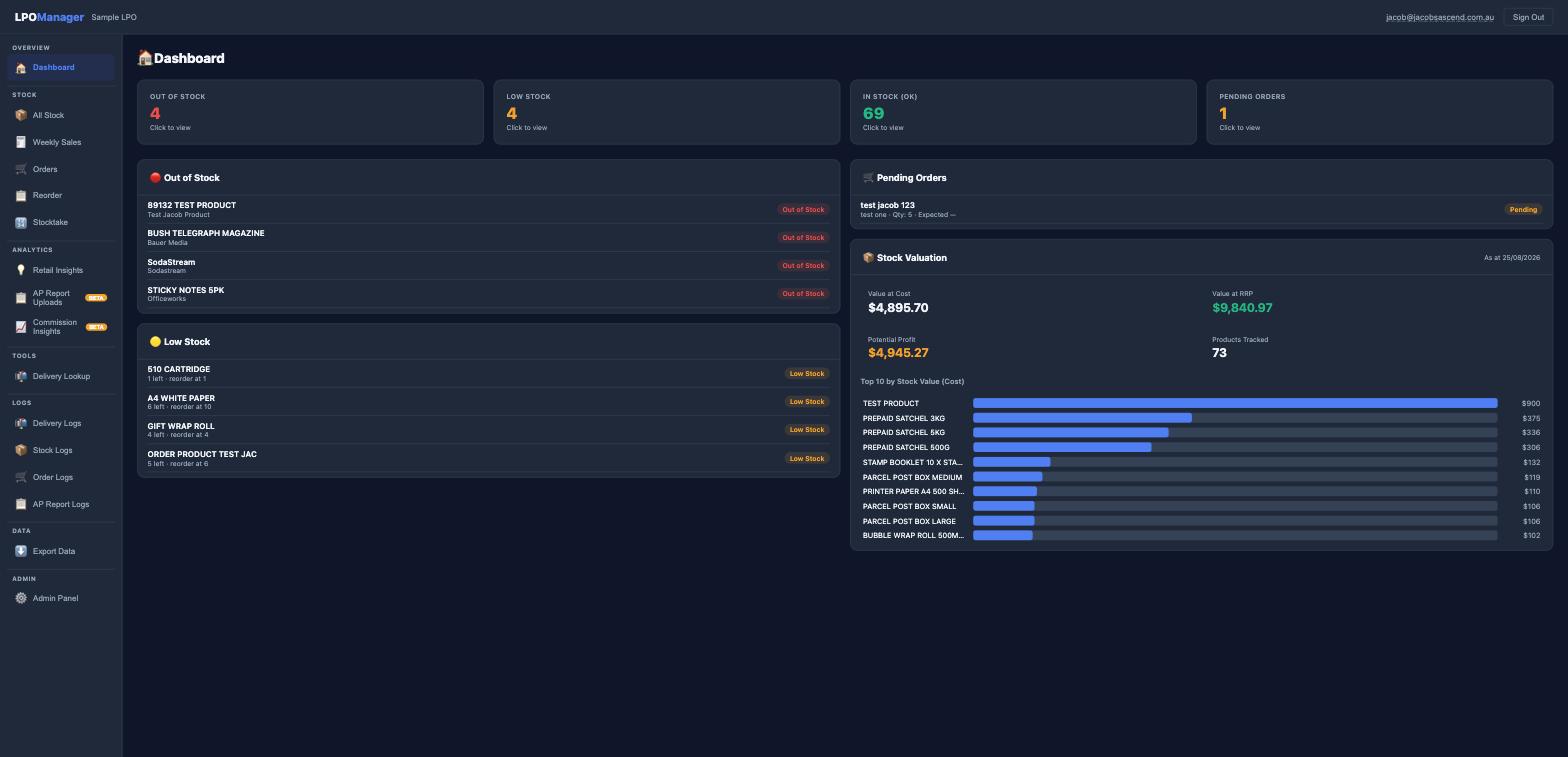
Your home screen. Shows stock alerts (out of stock and low stock), pending orders, stock valuation, and a top-10 chart of your most valuable products. This is the first thing you see after logging in.
All Stock
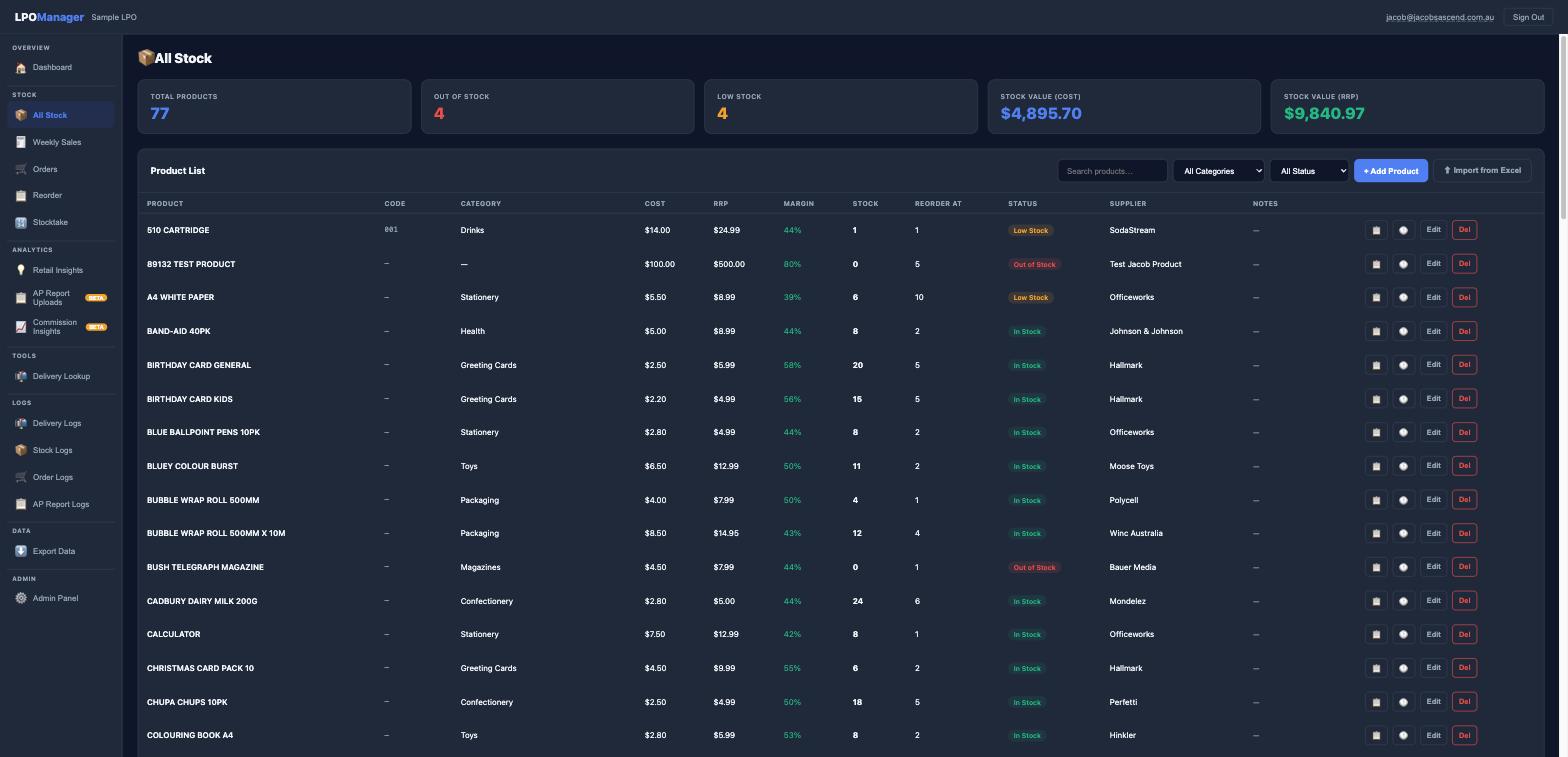
A full list of every product in your store. You can see the product name, cost price, RRP, profit margin, and current stock level at a glance. Use this screen to add new products, edit existing ones, update costs or prices, and set reorder quantities.
Weekly Sales
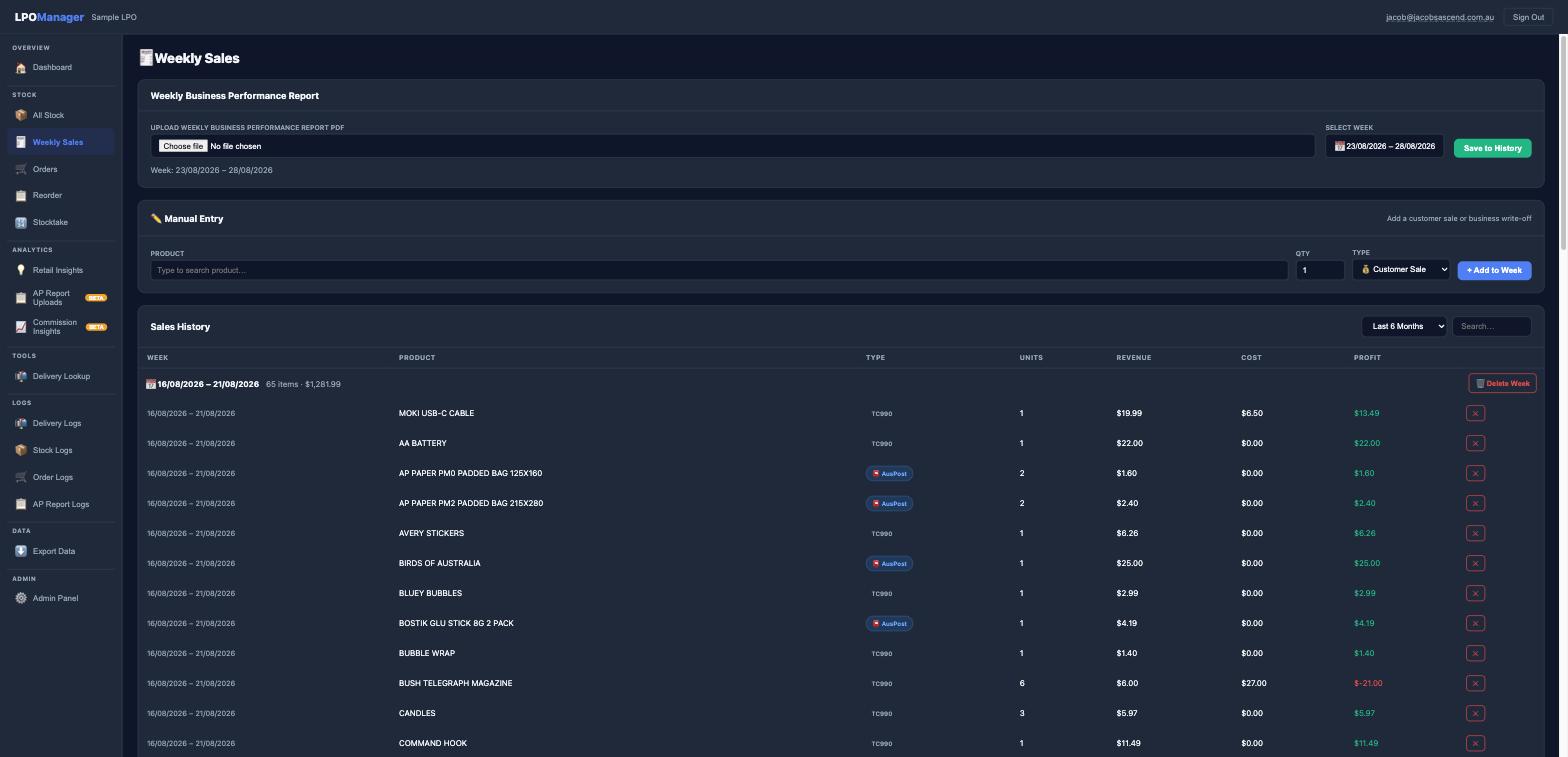
Upload your Weekly Business Performance Report PDF here. Once uploaded, LPO Manager reads all the TC990 transactions and displays them for you to map to your stock items. Past weeks are shown in the Sales History table below. There is also a manual entry option — use this to record business write-off items or customer sales that were not put through the Australia Post terminal.
Orders
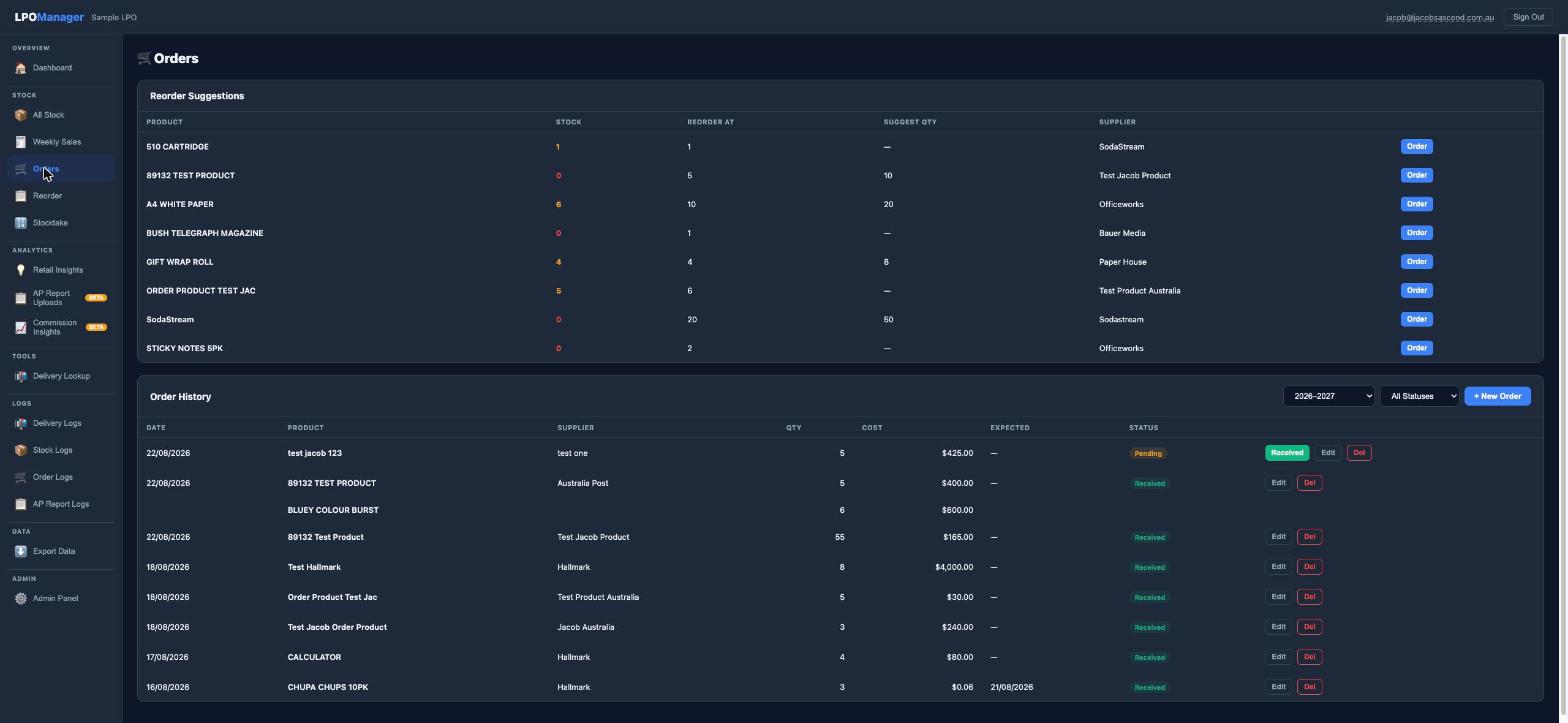
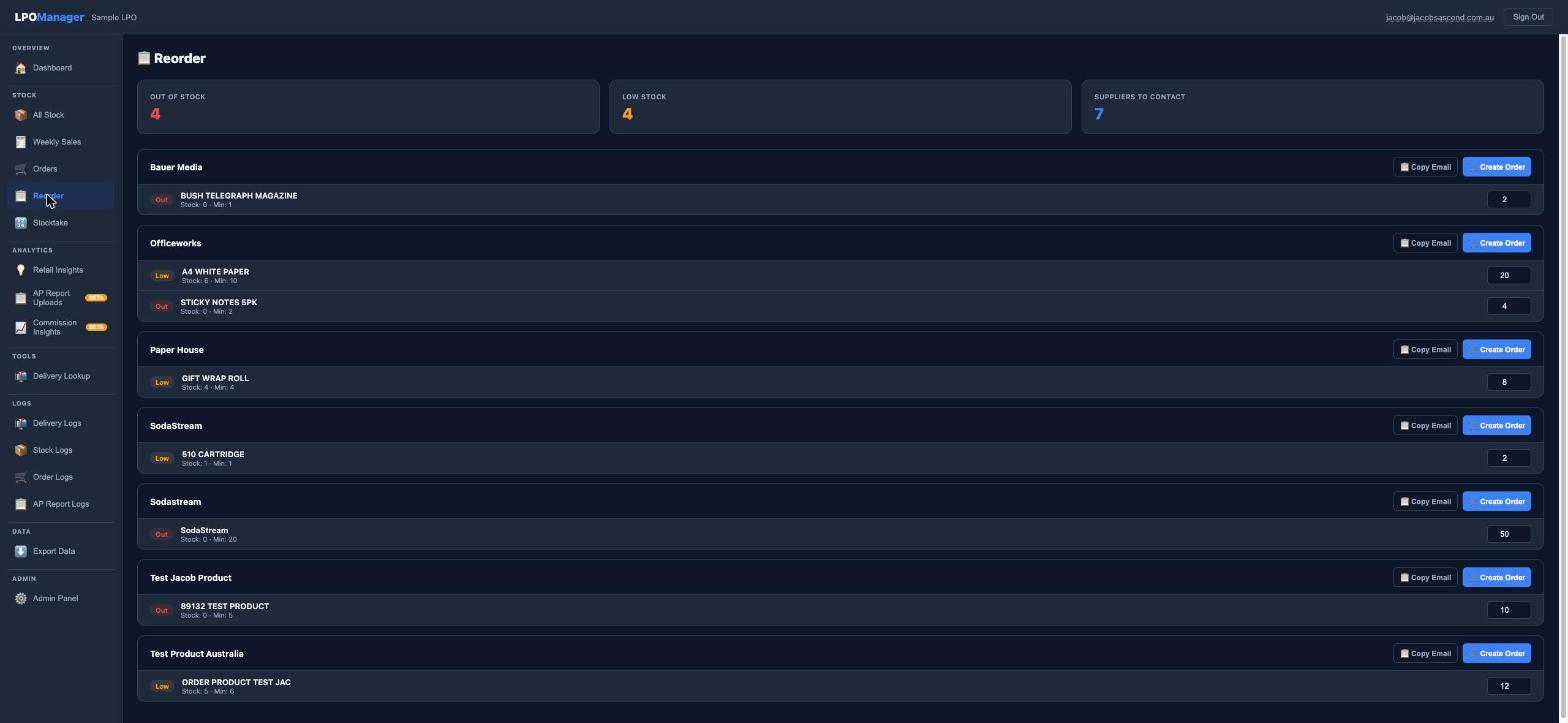
Shows reorder suggestions for products that are low or out of stock, grouped by supplier. Click "Create Order" next to any supplier to place a new order. The Order History below tracks all past orders with their date, quantity, cost, and status.
Reorder
A focused view of every product that has fallen below its reorder point, grouped by supplier. Shows how many you currently have in stock, the minimum level, and a suggested quantity to order. You can copy a reorder email to send to your supplier directly from this screen.
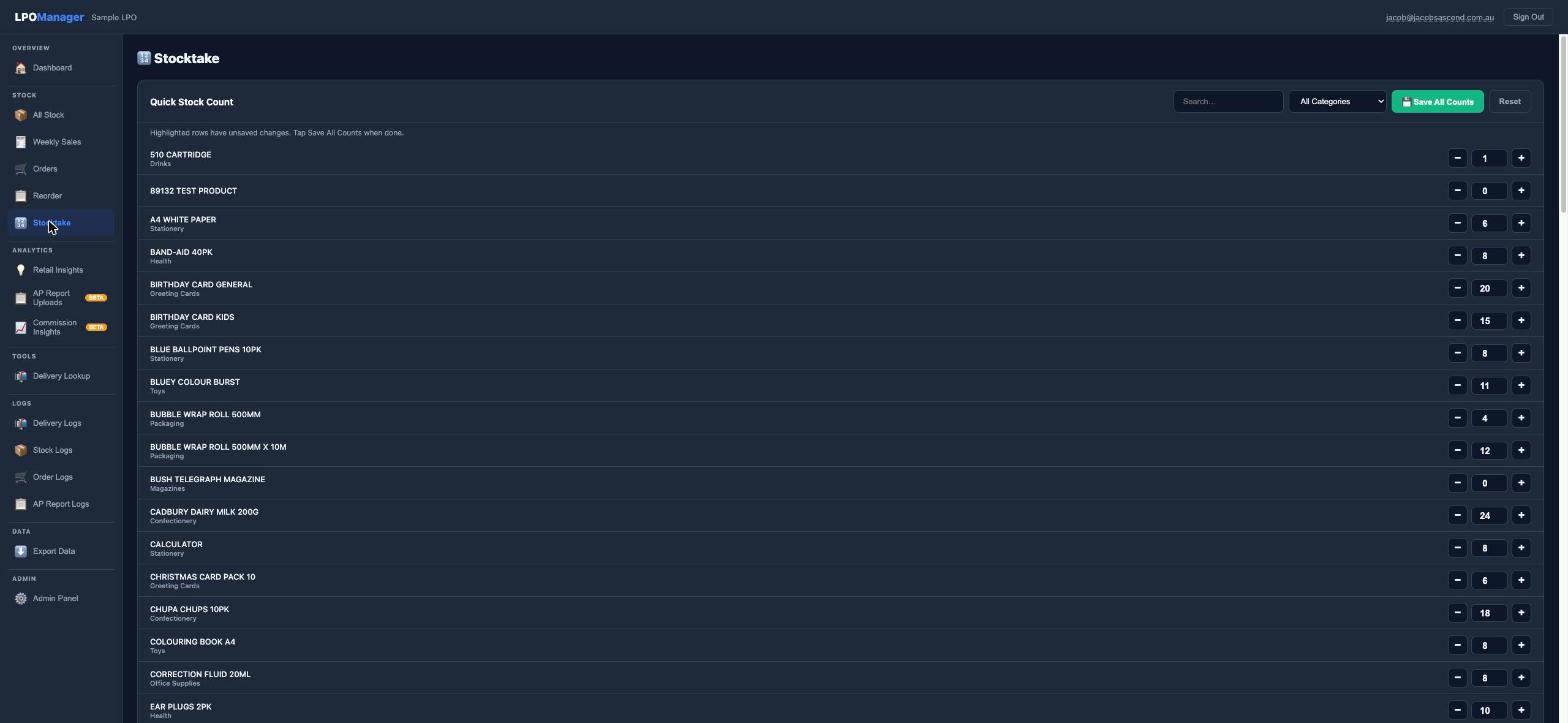
Stocktake
Designed to quickly adjust your stock count. Every product is listed with its current recorded count and +/− buttons — simply tap to increase or decrease each item's count as you walk your shelves, then tap "Save All Counts" when done.
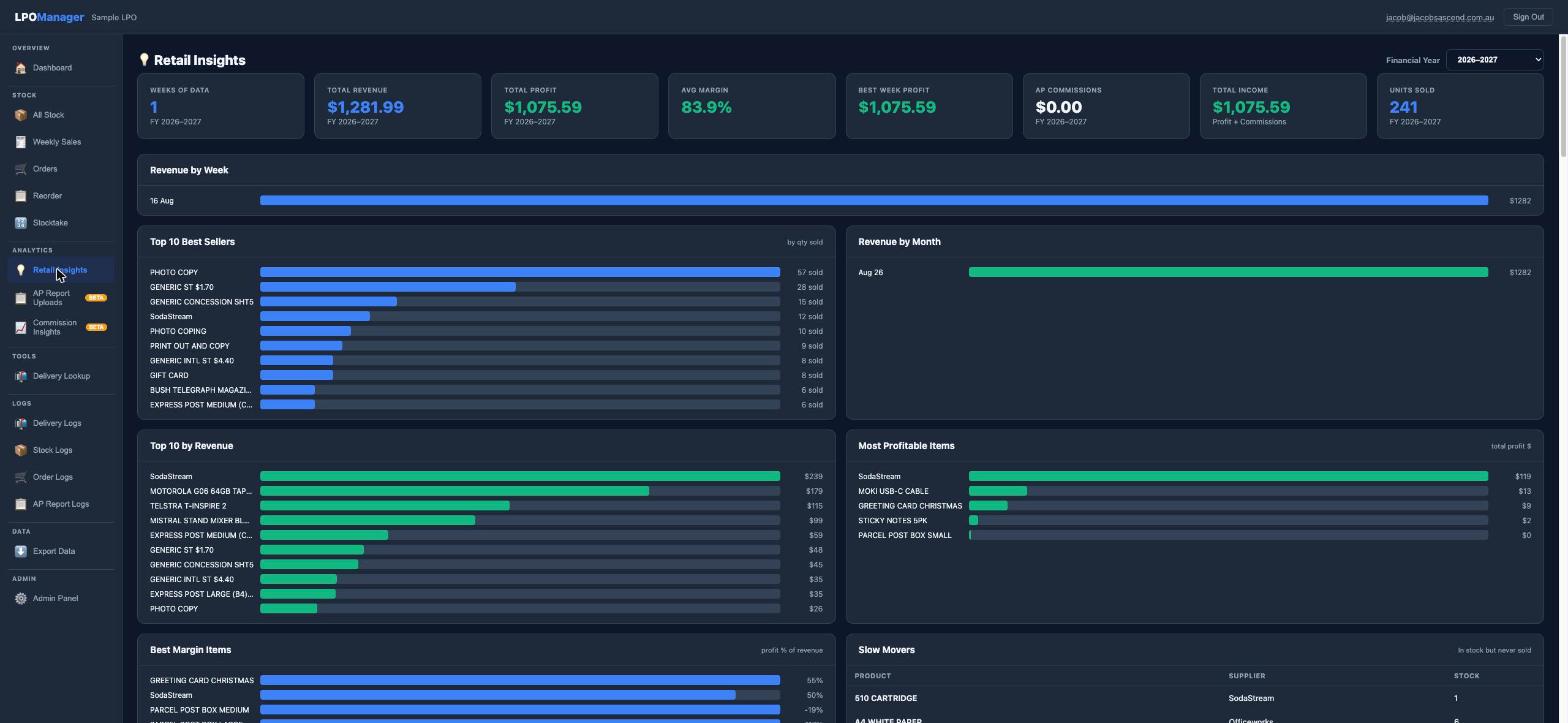
Retail Insights
Sales analytics for your retail stock — total revenue, profit, average margin, units sold, and revenue by week. Shows your top 10 best sellers by quantity and by revenue, most profitable items, and slow movers (products in stock that have never sold). Helps you make smarter decisions about what to stock.
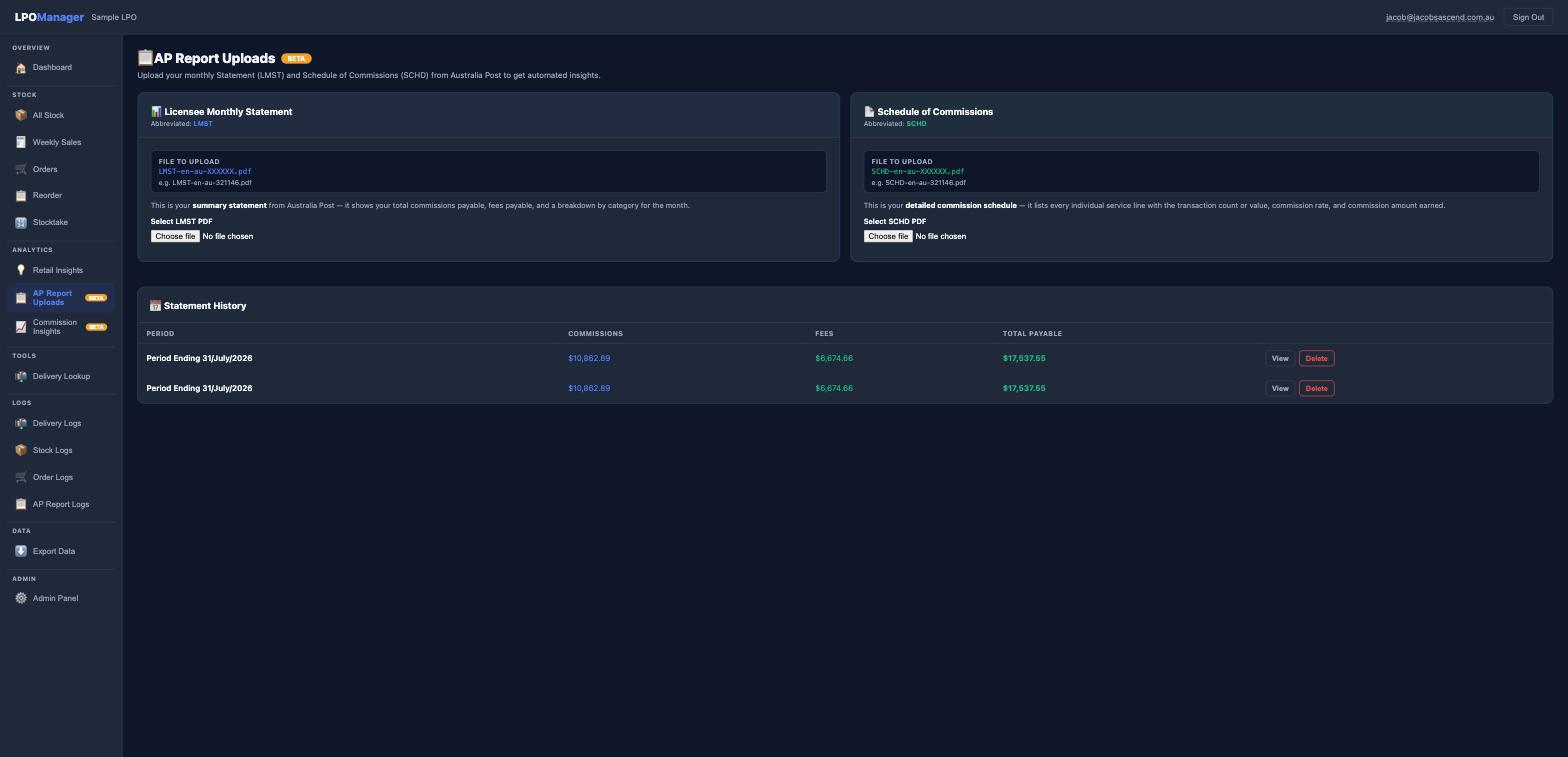
AP Report Uploads
Upload your monthly Australia Post Commission Statements here. These are your official monthly statements showing commissions and fees — not TC990 retail transactions. Uploading these populates your Commission Insights.
Commission Insights
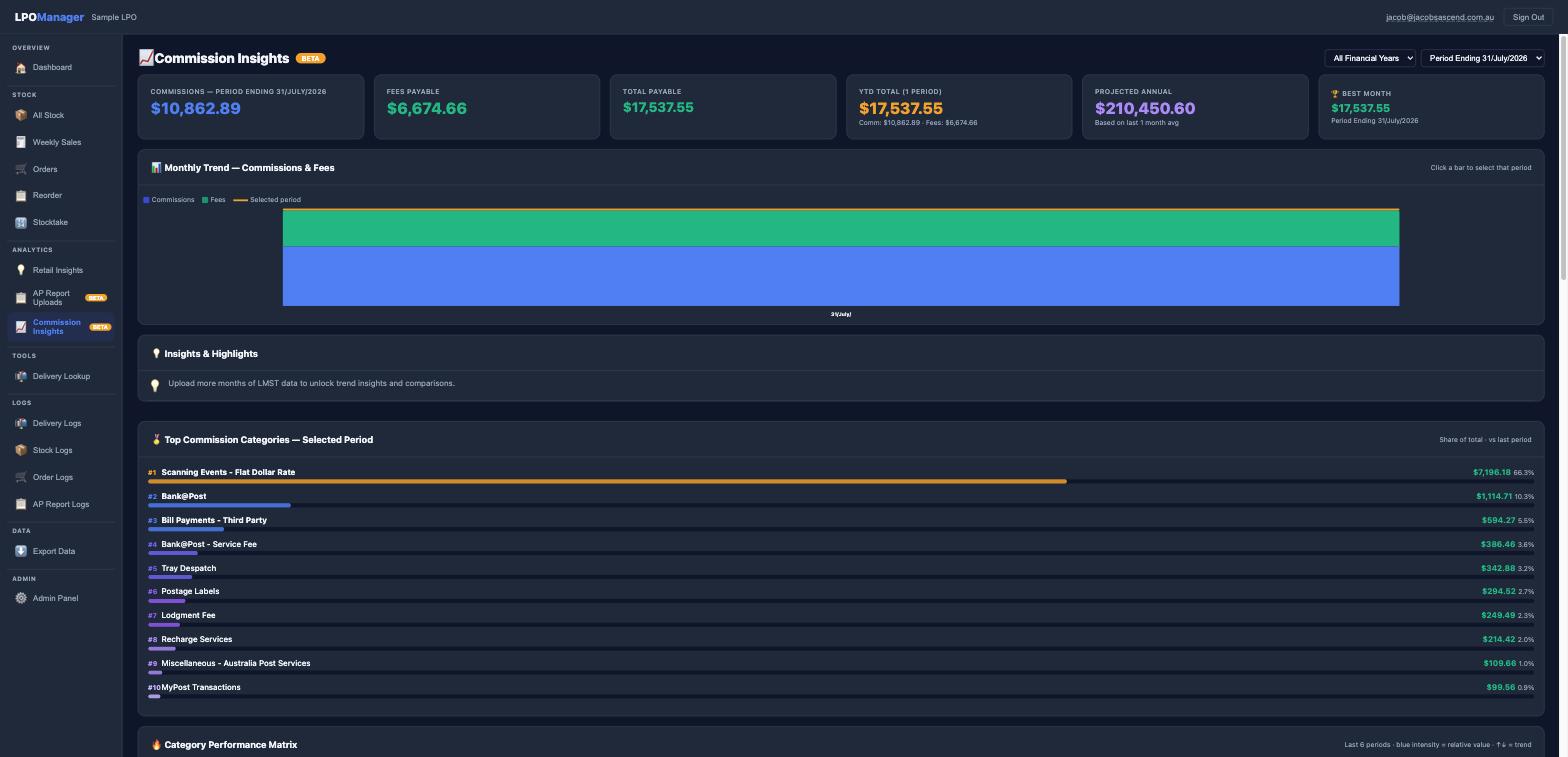
Charts and analysis built from your uploaded statements. See your monthly commission trend, top-earning categories, quarterly breakdown, and automatic highlights like fastest-growing category and biggest contributor. The more statements you upload, the richer the insights become.
Delivery Lookup
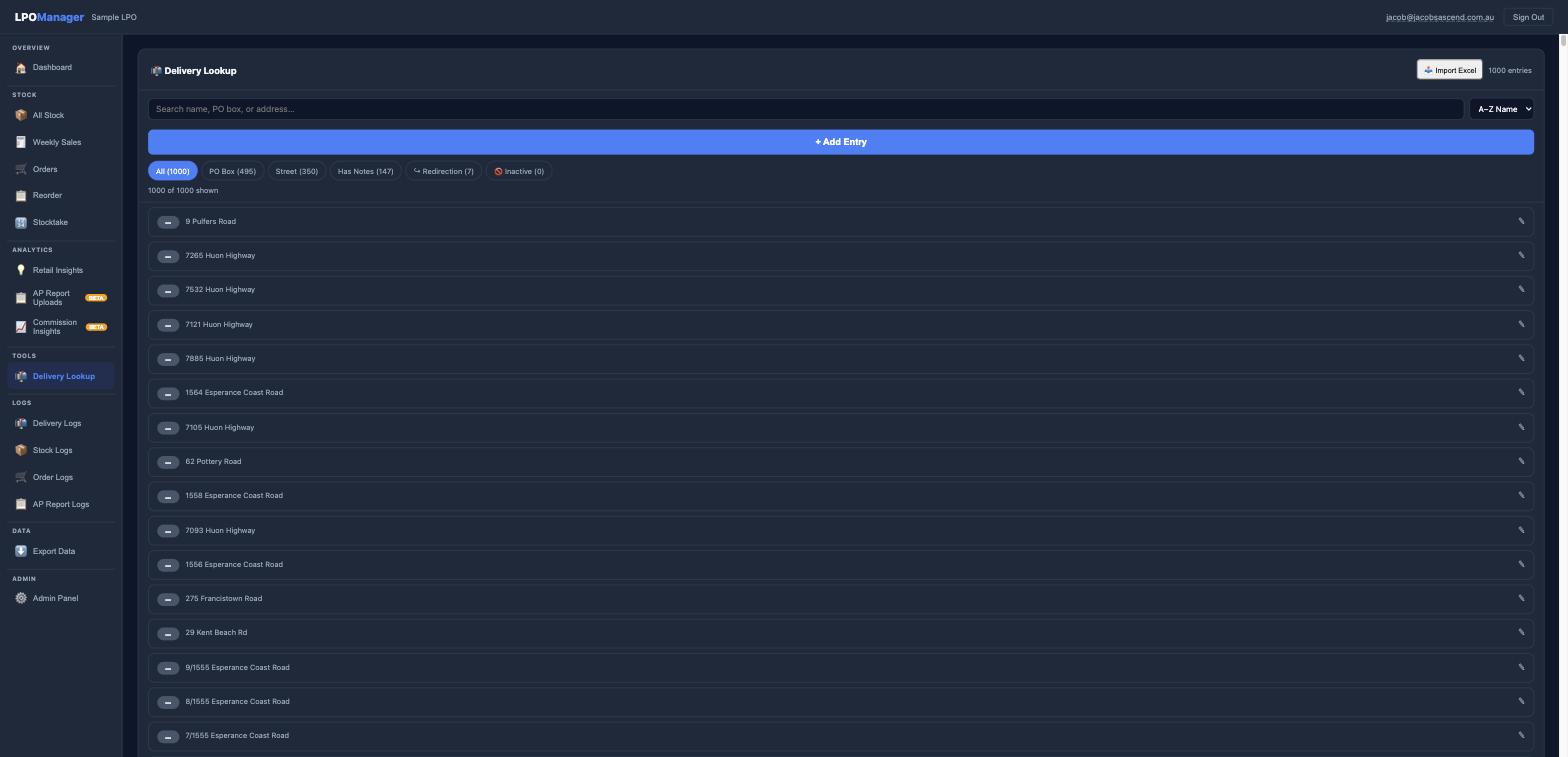
Search your customer list to find how someone receives their mail — whether they are on street delivery, hold a PO box, or collect over the counter. Search by name, PO box number, or address. You can also add notes and flag active mail redirections.
TIP: If you see a small "BETA" badge next to a menu item, those features are still being improved. They work normally — new enhancements are added regularly.
Logs
The Logs section records every action taken in LPO Manager — across deliveries, stock, orders, and AP report uploads. Logs are especially useful if you have staff members or multiple admin accounts, as you can see exactly who made each change and when. There are four log views: Delivery Logs, Stock Logs, Order Logs, and AP Report Logs.
4. The Weekly Business Performance Report
Australia Post produces a Weekly Business Performance Report for every LPO. This PDF report shows you important numbers from the past week — customer visits, parcel volumes, sales turnover, and more.
Where does this report come from?
The report is available through Australia Post's POP portal. It is usually published early each week and covers the previous week's activity. You download it as a PDF file.
NOTE: If you are not sure how to access or download this report, contact your Australia Post regional representative for help.
What does the report look like?
The report is 4 pages. Below is an example of each page:
Page 1 — Weekly Business Summary
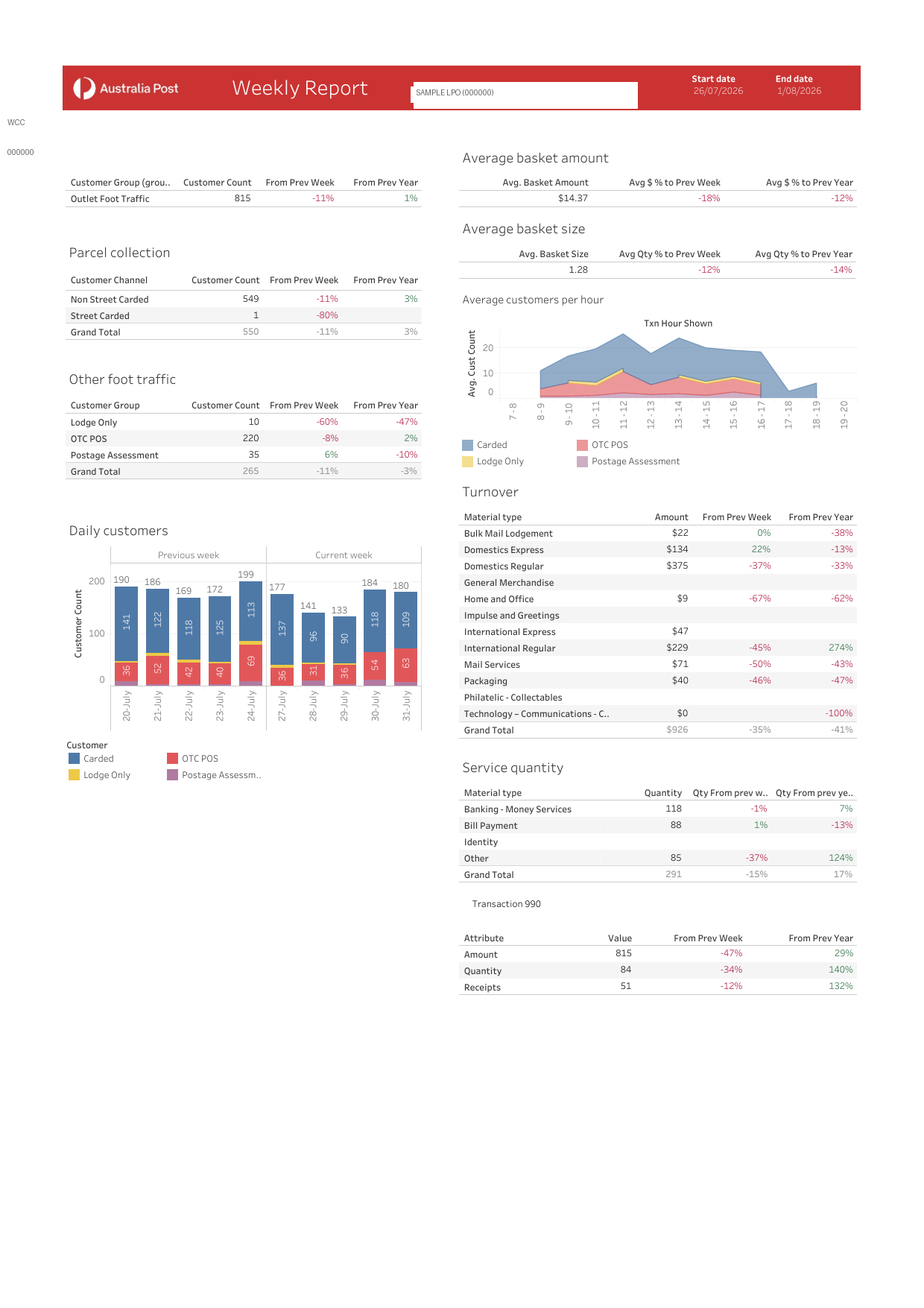
This page shows your key weekly numbers at a glance: total customer count, parcel collections, daily customer charts, average basket size, and a breakdown of sales by product type.
Pages 2 & 3 — TC990 Transaction Details
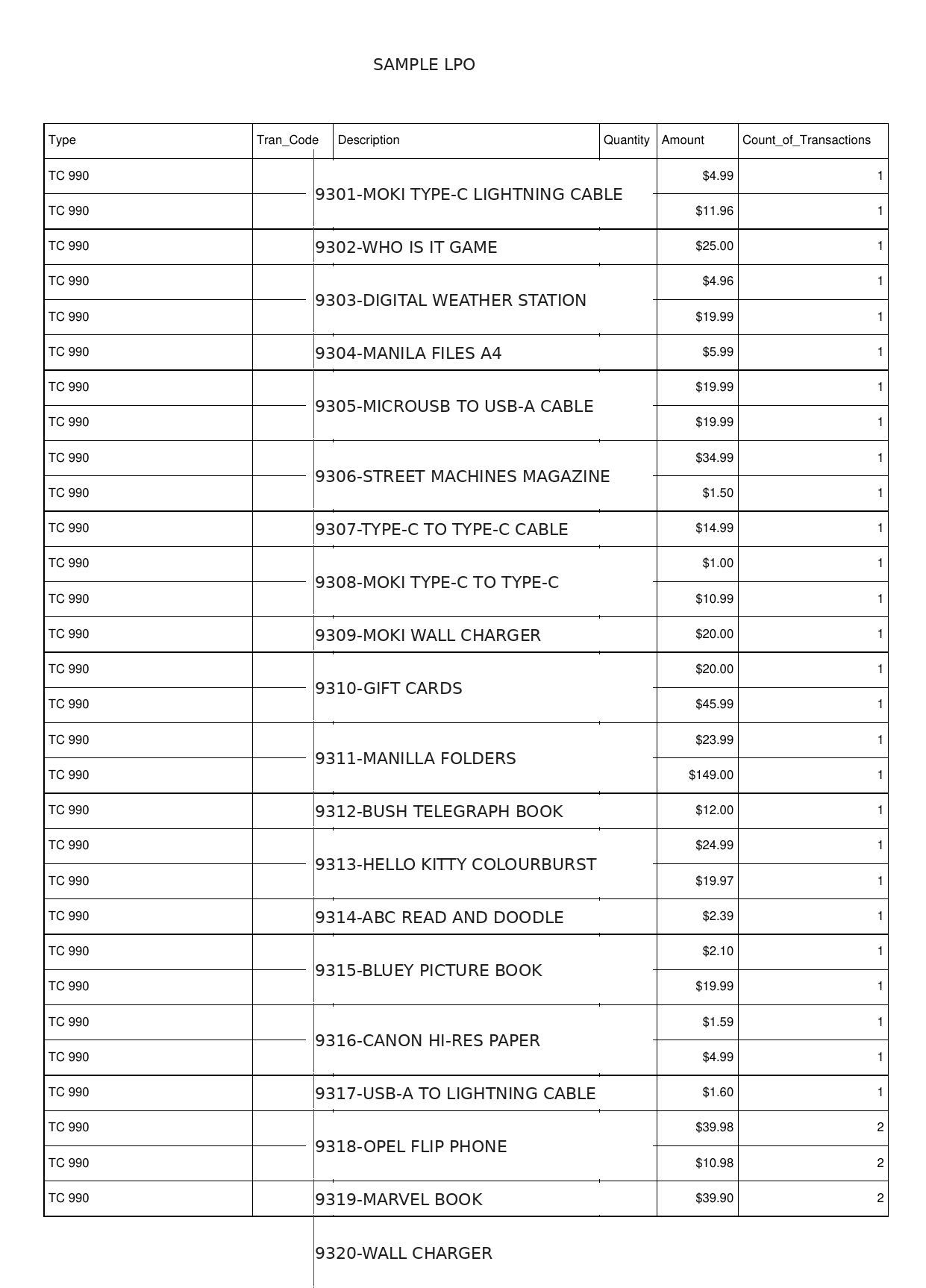
These pages list every TC990 transaction for the week. Notice how the Description column uses the stock number prefix format — for example "9301-MOKI TYPE-C LIGHTNING CABLE". This is how LPO Manager identifies and tracks each stock item.
Page 1: Weekly Business Performance Summary (LPO details replaced with sample values)
Example TC990 transaction page — stock number prefix format (e.g. 9301-Item Name)
5. How to Map Your Stock Efficiently Using Stock Numbers
LPO Manager tracks your stock using the product name. To make the mapping process easier, the recommended approach is to assign a unique stock number to each product you sell, and use a price gun to label that product with its number. When you sell the item through the TC990 terminal, enter the product number first, followed by the product name (e.g. 9312-Sodastream). This allows LPO Manager to automatically match the sale to the correct product when you upload your weekly performance report.
NOTE: If you prefer not to use stock numbers, that is fine — but it does mean you will need to spend some time manually mapping each product during upload if the description entered at the terminal is different to the product name in LPO Manager. Using stock numbers also helps when different staff members enter slightly different descriptions at the terminal — because the product number prefix stays consistent in both LPO Manager and the TC990, the system can still match the sale to the correct product every time.
What is a stock number?
A stock number is a short number you choose to identify a product. It is used as a prefix to the product name, separated by a hyphen. For example:
9312-Sodastream
9313-Stamps Sheet 10
9314-Bubble Mailer A4
9315-Padded Bag Medium
You choose the numbers — they just need to be unique and consistent. When you enter the item on the Australia Post terminal, you type the full label exactly as above (stock number, hyphen, product name).
TIP: For Australia Post products that are scannable through the Australia Post terminal (such as stamps, parcels, and postal products), you can use the Australia Post Material Code as the product code in LPO Manager. This keeps your codes consistent with what you already see in the system.
Step 1 — Label your products with a price gun
1
Get a price gun (label gun) and blank labels. These are available from stationery suppliers.
2
Decide on a stock number for each product you sell. When adding that product in LPO Manager, enter this number as the product code — this is what links your label to your stock record in the system.
3
Print a label for each product with its stock number using the price gun.
4
Stick the label on the product (or on the shelf edge if it is a product you display).
TIP: Keep your stock number list somewhere easy to find — stick it near the counter or inside a drawer. You will need to refer to it when adding products in LPO Manager.
Step 2 — Enter stock items through the Australia Post terminal (TC990)
When a customer buys a stock item and you process it through your Australia Post terminal, you enter the transaction as a TC990. Here is how to record it correctly so that LPO Manager can track it:
1
On the Australia Post terminal, start a new TC990 transaction.
2
When prompted for the item description, enter the stock number followed by a hyphen and the product name — for example: 9312-Sodastream or 9313-Stamps Sheet 10.
3
Always enter the same stock number for that product every time you process a sale — use the number from the label you have stuck on the product. For example, if your Sodastream label says 9312, always enter 9312-Sodastream, never just "Sodastream" or a different number. Consistency is what allows LPO Manager to recognise and match it automatically.
4
Enter the price and quantity as normal, then complete the transaction.
TIP: Always enter the stock number FIRST, then the item name. This is what LPO Manager uses to match up your sales with the right product in your stock list.
NOTE: If you skip the stock number and only enter a name, you can still manually map the sale to the correct product during the upload review. However, using the same stock number prefix consistently means the system will match it automatically every time — saving you the manual step each week. This is especially helpful when different staff members or co-owners enter slightly different descriptions for the same item at the terminal, as the product number stays consistent regardless of how the name is typed.
Step 3 — Add products to LPO Manager
Once you have your stock numbers set up, add each product into LPO Manager:
The All Stock screen — view and manage all your products, costs, RRP, margins, and stock levels
1
Log in to LPO Manager and click "Stock" in the left menu.
2
Click "Add Product" (or the + button).
3
Enter the stock number, product name, and current stock level.
4
Enter the minimum quantity (reorder level) — this is the stock count at which you need to place a new order. LPO Manager will alert you when stock falls below this number.
5
Save the product. Repeat for each item you sell.
TIP: Once your products are set up, LPO Manager will automatically update your stock counts each time you upload your weekly report — so you can always see what is running low.
6. How to Upload Your Weekly Report
The weekly report is uploaded through the Weekly Sales tab. After uploading, you review the items detected and map any TC990 sales to your stock items. The app remembers your mappings, so each week it becomes more automatic.
The Weekly Sales screen — upload your report at the top, view sales history below
Step 1 — Upload the report
1
Log in to LPO Manager at lpomanager.com.au
2
In the left menu, click "Weekly Sales".
3
Click the "Choose File" button (it may also say "Browse" on some computers).
4
A window will open showing your files. Find your Weekly Business Performance Report PDF and click it to select it.
5
Click "Open". The file name will appear on screen.
6
Click "Upload". Wait a few seconds — a message will confirm the upload was successful.
TIP: Your report file is usually named something like "WeeklyReport_04Aug2026.pdf" and is saved to your Downloads folder.
Step 2 — Map your sales to stock items
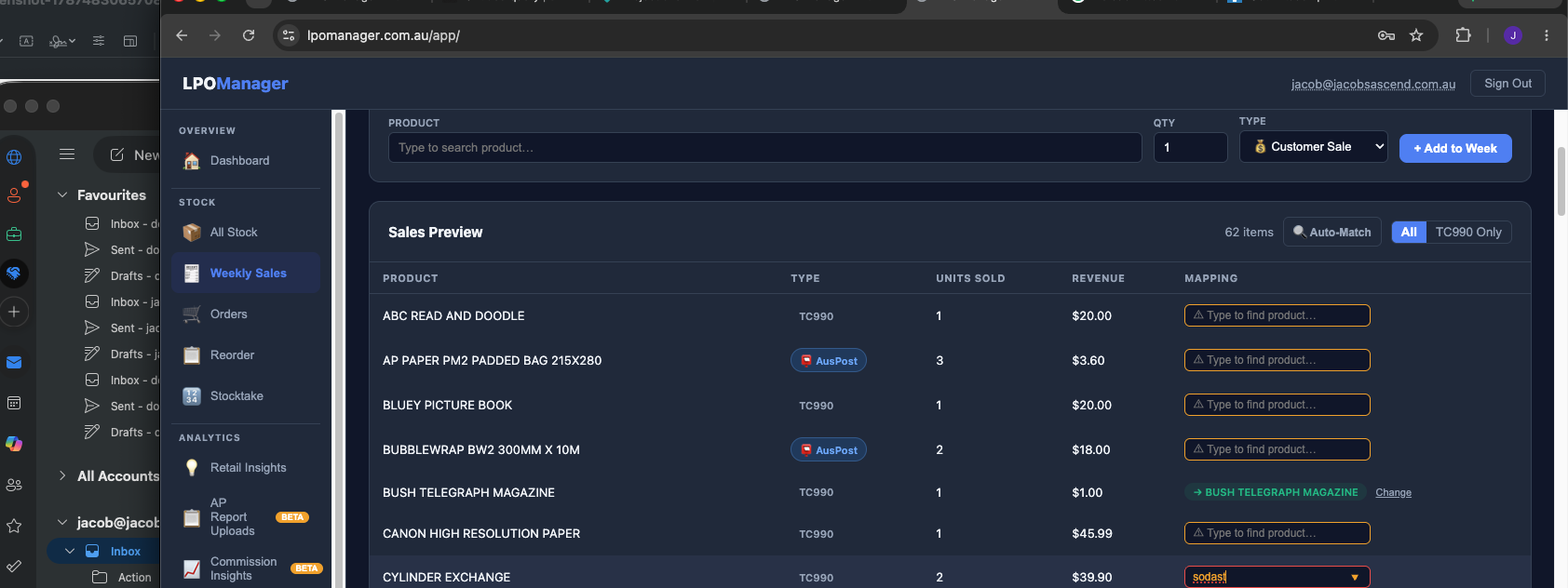
After uploading, LPO Manager shows you a Sales Preview — a list of every item sold that week. For each TC990 item, there is a Mapping column on the right where you match the sale to your stock product.
1
Look through the Sales Preview list.
2
For any item that shows "Type to find product..." in the Mapping column, click that box and start typing the product name.
3
A dropdown list will appear. Click the correct product to match it.
4
Once matched, LPO Manager remembers that mapping. Next time you upload, that item will be matched automatically.
TIP: Items that were already matched from a previous upload will show their product name in green — you do not need to do anything for those.
NOTE: This is why using the stock number format matters. If you entered "9312-BUSH TELEGRAPH MAGAZINE" at the Australia Post terminal, the app can auto-match it to your "Bush Telegraph Magazine" stock item — saving you time every week.
Sales Preview: mapping TC990 items to stock products using the Mapping column
Manual Entry
The Weekly Sales screen also includes a Manual Entry option. Use this to record any sales or write-offs that were not processed through the Australia Post terminal — for example, a direct customer sale handled outside the terminal, or a stock item written off for internal use. Entries added here are included in your stock count updates just like uploaded report items.
NOTE: The weekly report and the monthly AP Statement are different files. The weekly report gives you up-to-date performance data, while the AP Statement provides the official transaction and commission record for each month.
7. Uploading AP Statement Files
As well as the Weekly Business Performance Report, you can also upload your monthly Australia Post Commission Statements (also called the LMST or AP Statement). These are the official monthly PDFs that Australia Post produces showing your full commission breakdown.
The AP Report Uploads screen — upload your monthly commission statements here
What does the AP Statement contain?
The AP Statement is your official monthly record from Australia Post showing your commissions and fees. It includes:
- Commission amounts broken down by category (e.g. Banking, Parcels, Bill Payments, Identity, Mail Services)
- Any fees or deductions applied
- Your net payable total for the month
When you upload this file, LPO Manager reads your commission and fee details automatically and populates your Commission Insights charts and history.
How to upload an AP Statement
1
In the left menu, click "AP Report Uploads".
2
Find the section labelled "AP Statement Upload".
3
Click "Choose File" and locate your monthly statement PDF on your computer.
4
Click "Upload". The statement will be processed and your Commission Insights will update automatically.
TIP: You can upload multiple months' statements if you have them — LPO Manager will build up your full transaction history automatically.
NOTE: The weekly report and the monthly AP Statement are different files. The weekly report gives you up-to-date performance data, while the AP Statement provides the official transaction and commission record for each month.
8. Commission Insights
Commission Insights is one of the most powerful features in LPO Manager. It takes all your uploaded reports and turns them into easy-to-read charts, comparisons, and automatic alerts.
To access it, click "Commission Insights" in the left menu.
Commission Insights — monthly trend chart, top categories, and performance highlights
What you can see in Commission Insights
Monthly Trend Chart: A chart showing your total commissions and fees for each month — so you can see at a glance whether your income is going up or down.
Month vs. Previous Month: A side-by-side comparison of this month's commissions against last month, with a percentage change so you know straight away if you're ahead or behind.
Same Month Last Year: Compare this month to the same month last year — useful for understanding seasonal patterns.
Top 10 Categories: The 10 commission types earning you the most money, shown as easy-to-read horizontal bars.
Quarterly Breakdown: Your commissions broken down by financial year quarter (Jul–Sep, Oct–Dec, Jan–Mar, Apr–Jun).
Income Stability Score: A simple rating — Excellent, Good, Moderate, or Variable — that tells you how consistent your weekly income has been over time.
Category Concentration Risk: A rating showing whether your income is spread across many different products (Diversified), or relies heavily on just one or two categories (Concentrated).
Intelligence Cards: Automatic highlights produced by LPO Manager — things like "Fastest Growing Category This Month", "Needs Attention", and "Biggest Contributor". The app reads your data and tells you what to look out for.
TIP: The more weeks of reports you upload, the more useful Commission Insights becomes. Try to upload every week to build up a picture of your business over time.
NOTE: Commission Insights updates automatically after each upload. There is nothing extra to do.
9. Activity Logs
The Logs section gives you a complete audit trail of everything that happens in LPO Manager. Every change — whether it is a stock update, a new order, a delivery lookup, or an AP report upload — is recorded with a timestamp and the account that made the change.
This is especially valuable when you have staff members or multiple admin accounts accessing the system. If something has been changed or deleted, you can trace exactly who did it and when.
Delivery Logs
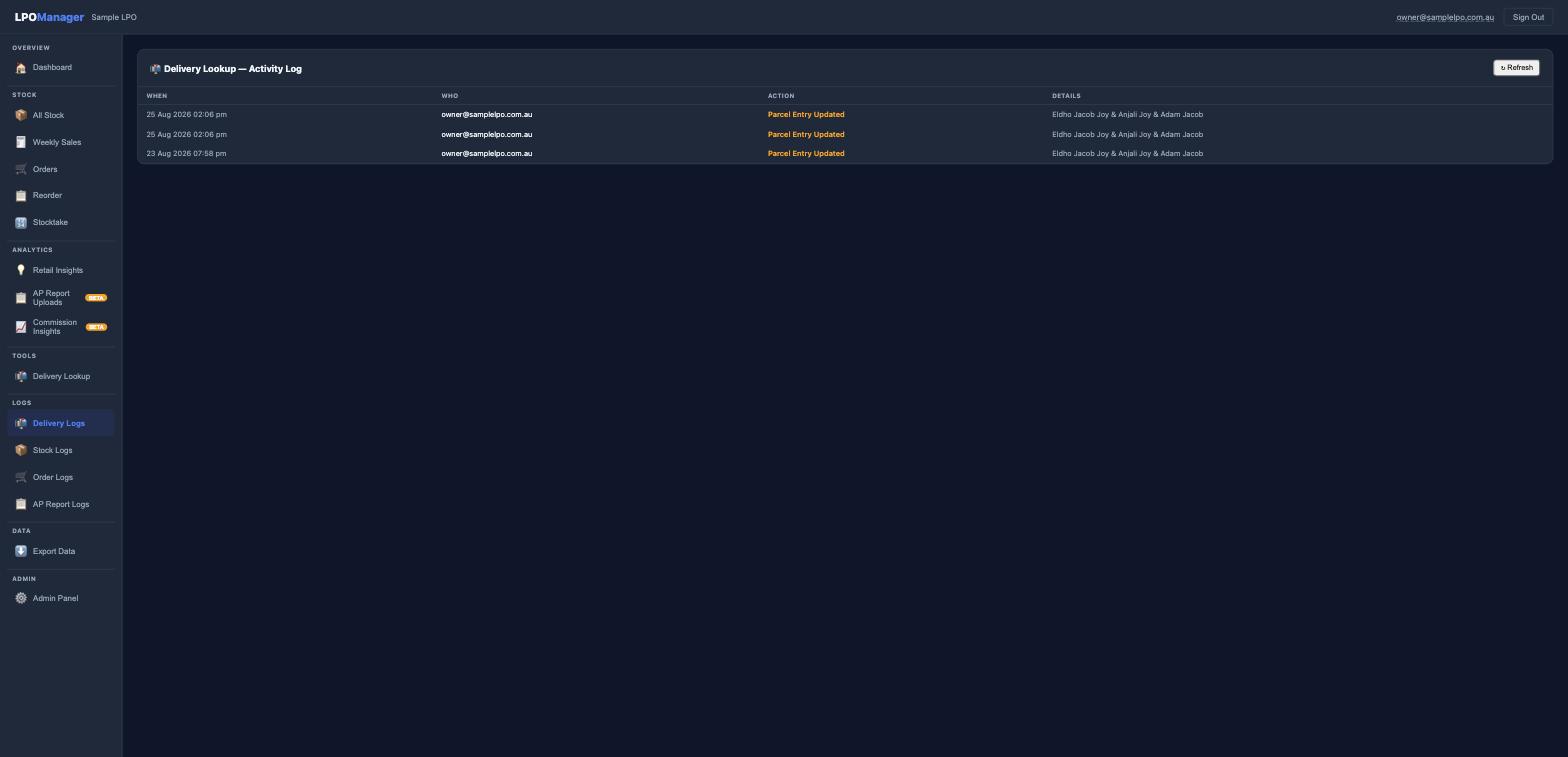
Delivery Logs — shows every update made to customer delivery entries
Records every time a customer delivery entry is added or updated — showing the date, the account that made the change, and what was updated. Useful for checking who modified a customer parcel delivery record.
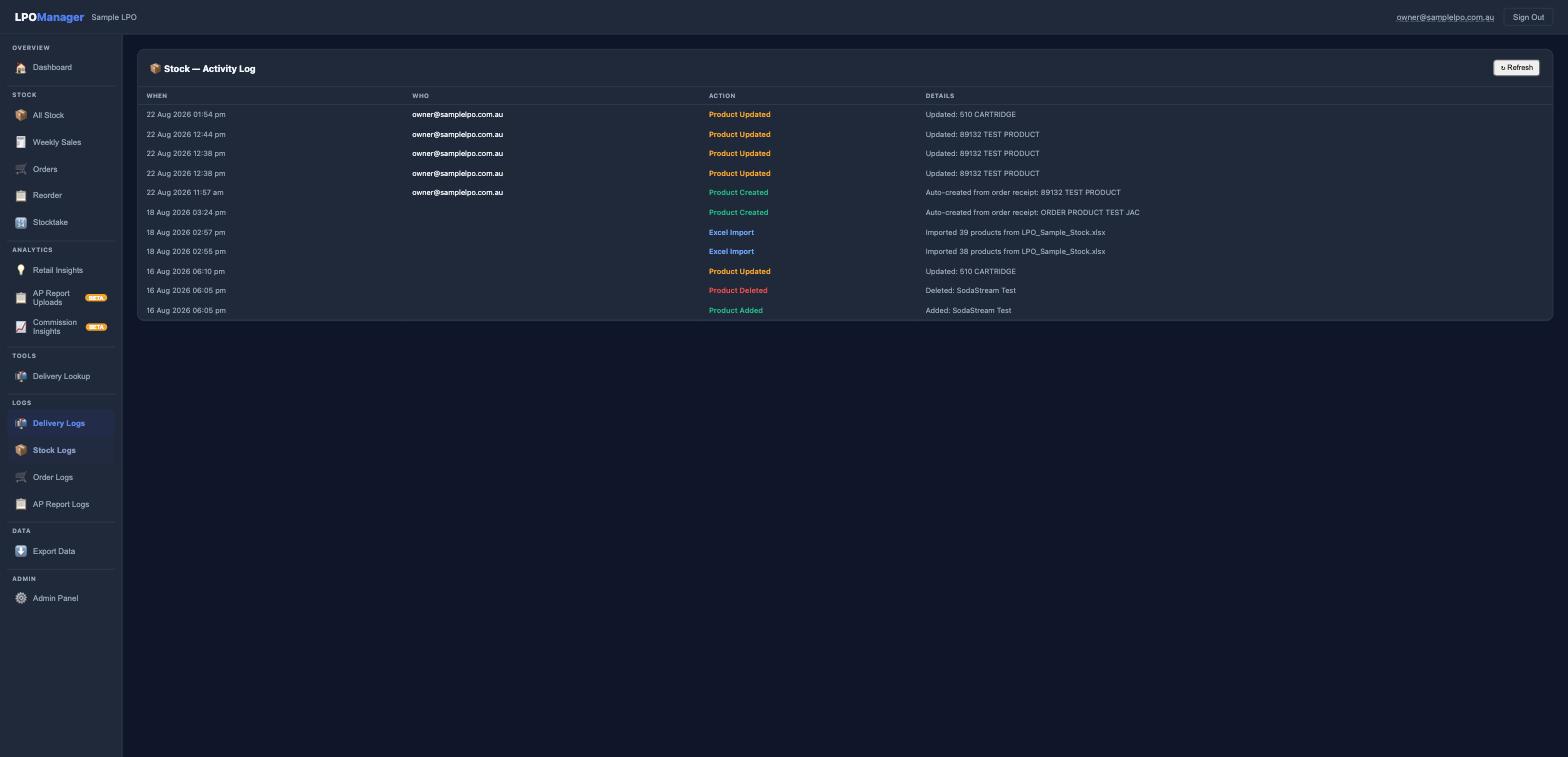
Stock Logs
Stock Logs — tracks every product added, updated, deleted, or imported
Tracks every change to your product list — including products added, updated, deleted, or imported via Excel. You can see the exact product name and what action was taken, and which account made the change.
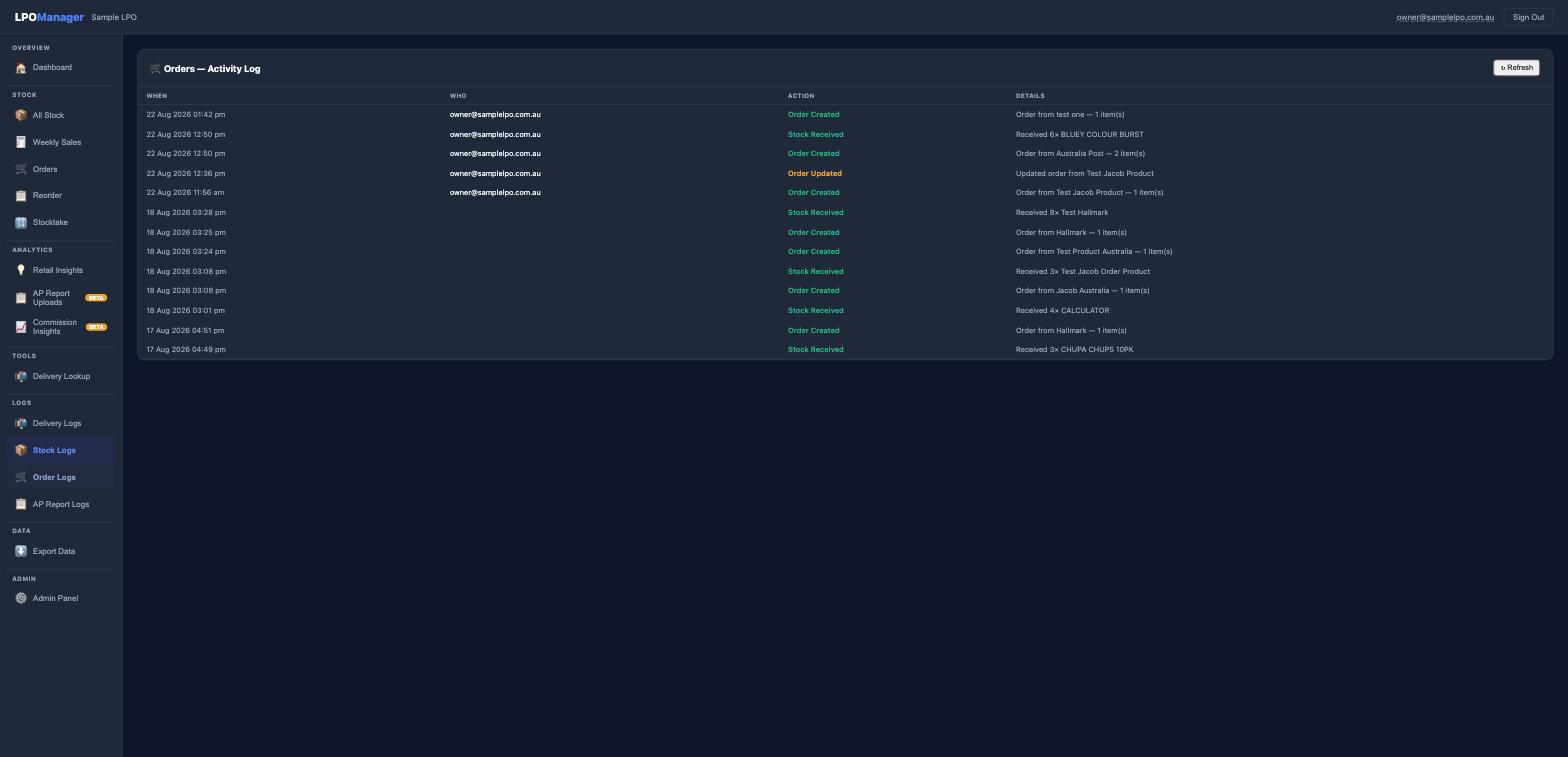
Order Logs
Order Logs — records every order created, updated, and stock received
Shows a history of all order activity — when orders were created, when they were updated, and when stock was received against an order. Each entry shows the supplier, the item, and who actioned it.
TIP: The logs are read-only — they cannot be edited or deleted, so you always have an accurate record of what happened in your system.
10. Tips & Frequently Asked Questions
Q: I uploaded my report but the Dashboard has not updated. What do I do?
Try refreshing the page — press F5 on your keyboard, or click the circular arrow icon in your browser. If it still has not updated, try signing out and signing back in again.
Q: I cannot find my PDF report file. Where is it saved?
Reports downloaded from Australia Post's portal are usually saved to your "Downloads" folder. On most computers you can find this by opening File Explorer (on Windows) or Finder (on a Mac) and looking for a folder called "Downloads".
Q: My password is not working.
Click "Forgot Password?" on the sign-in page and follow the instructions. A reset link will be emailed to you. If you do not see it in your inbox within a few minutes, check your spam or junk mail folder.
Q: Can my staff members use LPO Manager?
Yes! Staff members can have their own separate account with staff-level access. To set this up, simply email
admin@lpomanager.com.au and we will get them set up. Staff accounts have restricted access — they can assist with day-to-day tasks like stock and orders, but cannot view financial reports or commission details. Please note that staff accounts are available at an additional cost.
Q: I have uploaded the wrong file — what do I do?
There is a delete option available next to each uploaded file. Simply find the file in the upload history and click the delete button to remove it.
Q: I have made a lot of changes — how do I confirm they have been saved?
Check the Activity Logs. Go to the Logs section in the left menu and open the relevant log (Stock Logs for product changes, Order Logs for order changes, Delivery Logs for delivery updates, or AP Report Logs for uploads). Each entry shows what was changed, who made the change, and when — so you can confirm your saves went through.
Q: How often should I upload my weekly report?
Once a week is ideal — as soon as you receive your new Weekly Business Performance Report from Australia Post. Regular uploads keep your charts and insights up to date.
Q: What does the "BETA" label next to some menu items mean?
BETA means those features are working but are still being improved and updated. You can use them normally. If you notice anything unusual, contact
admin@lpomanager.com.au.